Edit Mode
The visualization can be adjusted in edit mode.
General Operations
The dashboard can be moved and scaled in Edit Mode in the same way as in the normal dashboard.
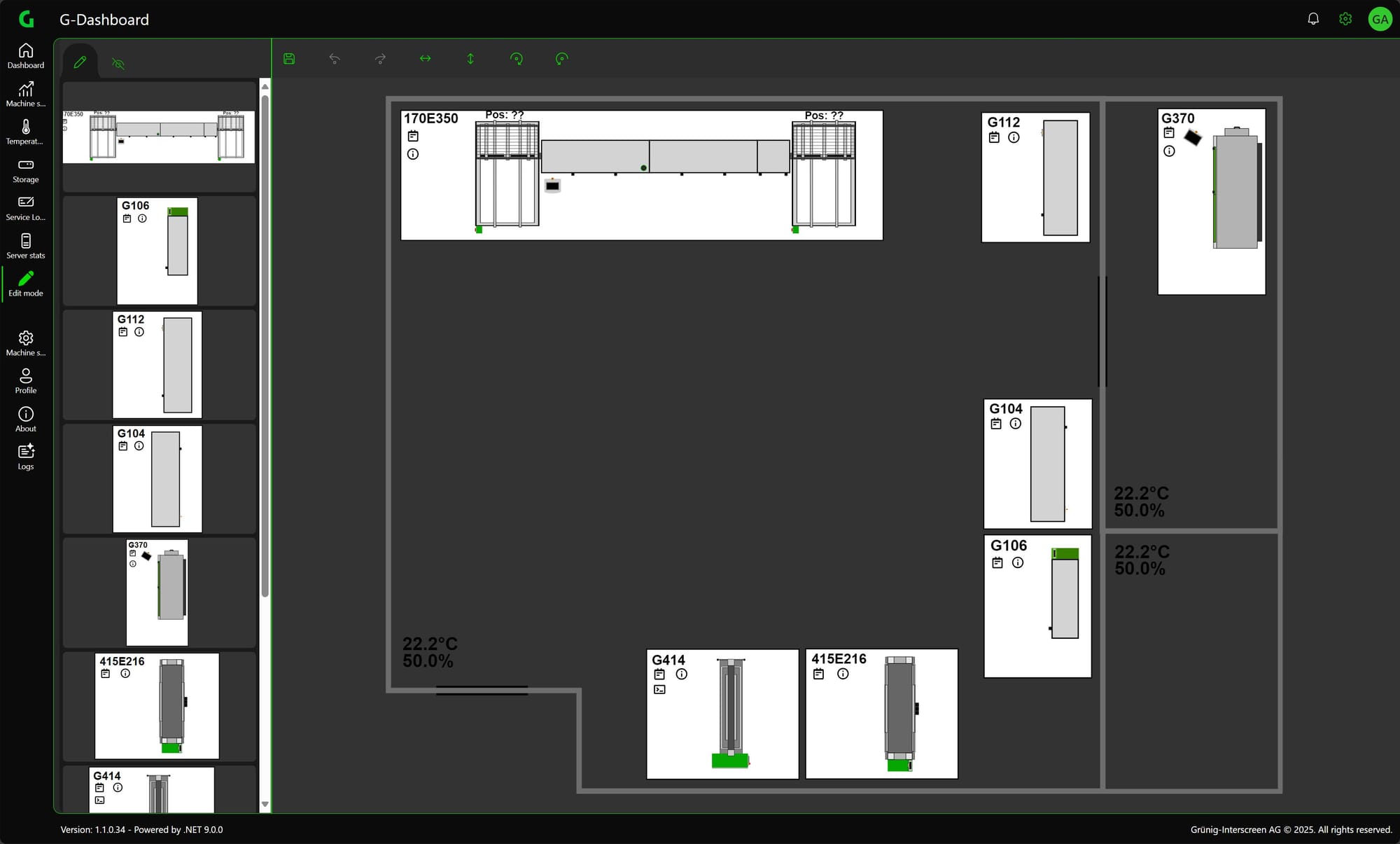
Operation Tools
Safe

Saves the positions of the machines if not in Machine Edit mode. If you are in machine edit mode, only the positions of the individual elements are saved in the machine. If the room has been edited, it must also be saved in Dashboard Edit mode.
Step Back

Goes back the last step. Can also be done with ctrl + z.
Step Forward

Takes a step forward. Can also be done with ctrl + y.
Mirror Vertical

Mirrors the selected object vertically. Texts cannot be mirrored.
Mirror Horizontal

Mirrors the selected object horizontally. Texts cannot be mirrored.
Rotate Right

Rotates the selected object 45° to the right.
Rotate Left

Rotates the selected object 45° to the left.
Features
The various functions that are possible in Edit mode are described here.
Edit Modes
A distinction must be made between the Dashboard Edit mode and the Machine Edit mode. By default, you are in Dashboard Edit when you enter Edit mode. However, to edit individual elements in the machines themselves, there is the Machine Edit mode.
How and what you can do in which mode is explained in the following points.
Dashboard Edit
When you enter edit mode, you are in dashboard edit mode. Here you can select individual machines, move them and edit them using the edit tools.
Selection
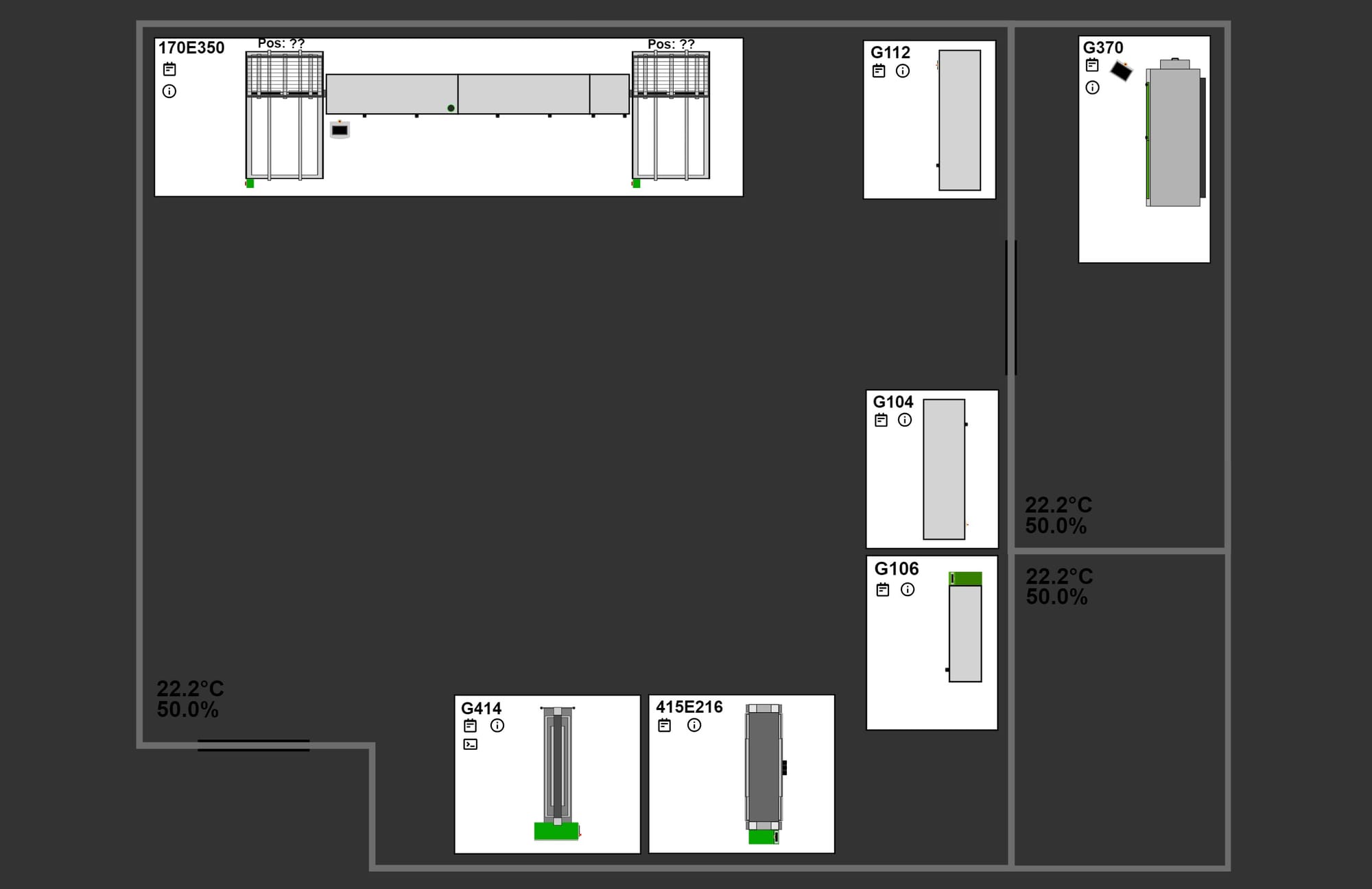
If no element is selected, the operations are applied to the entire dashboard.
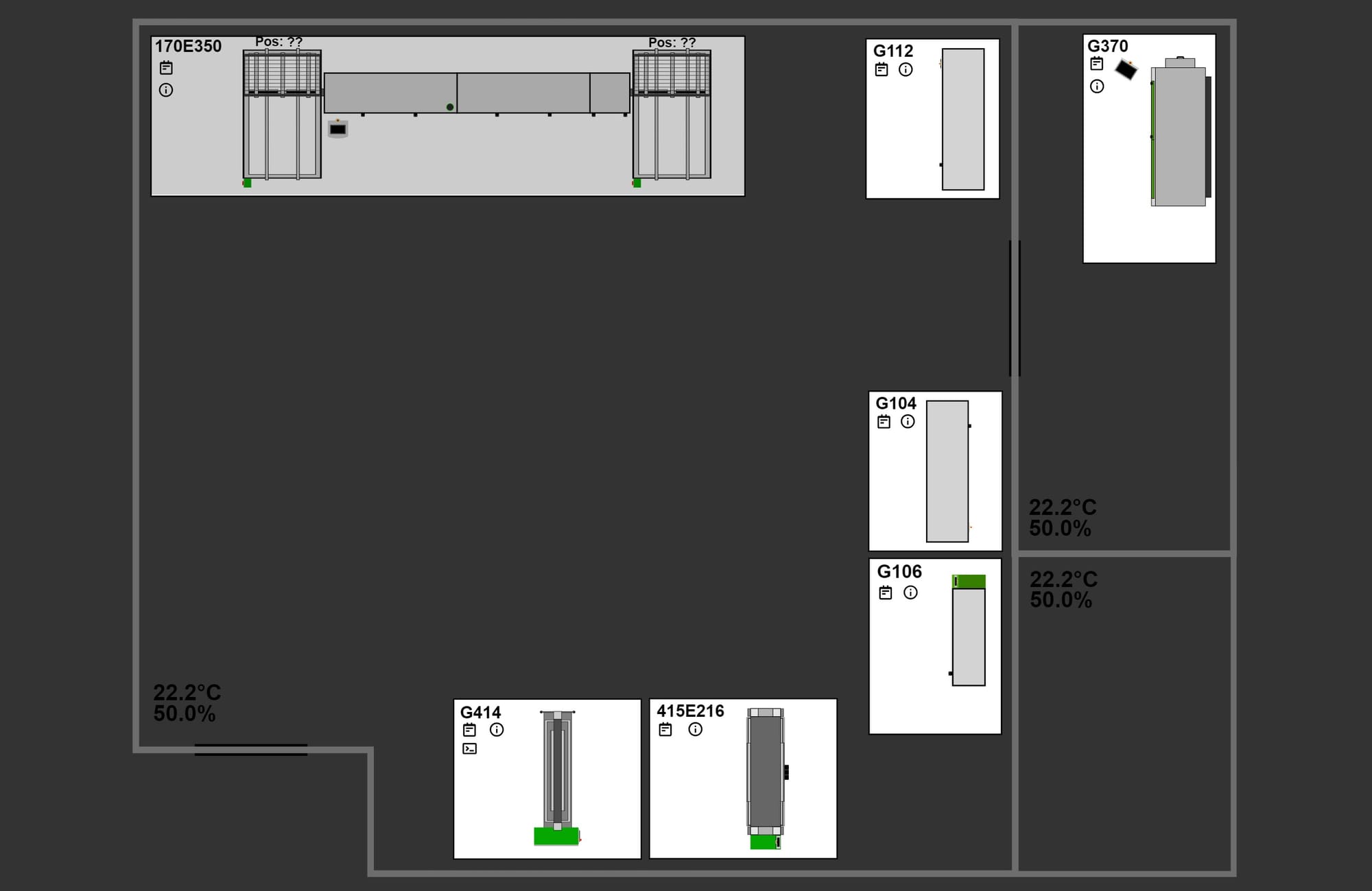
When a element is selected, the operations are performed on it and the selection can be moved and scaled.
Scale
To scale an object, you can drag in any corner of the object and adjust it to the desired size.
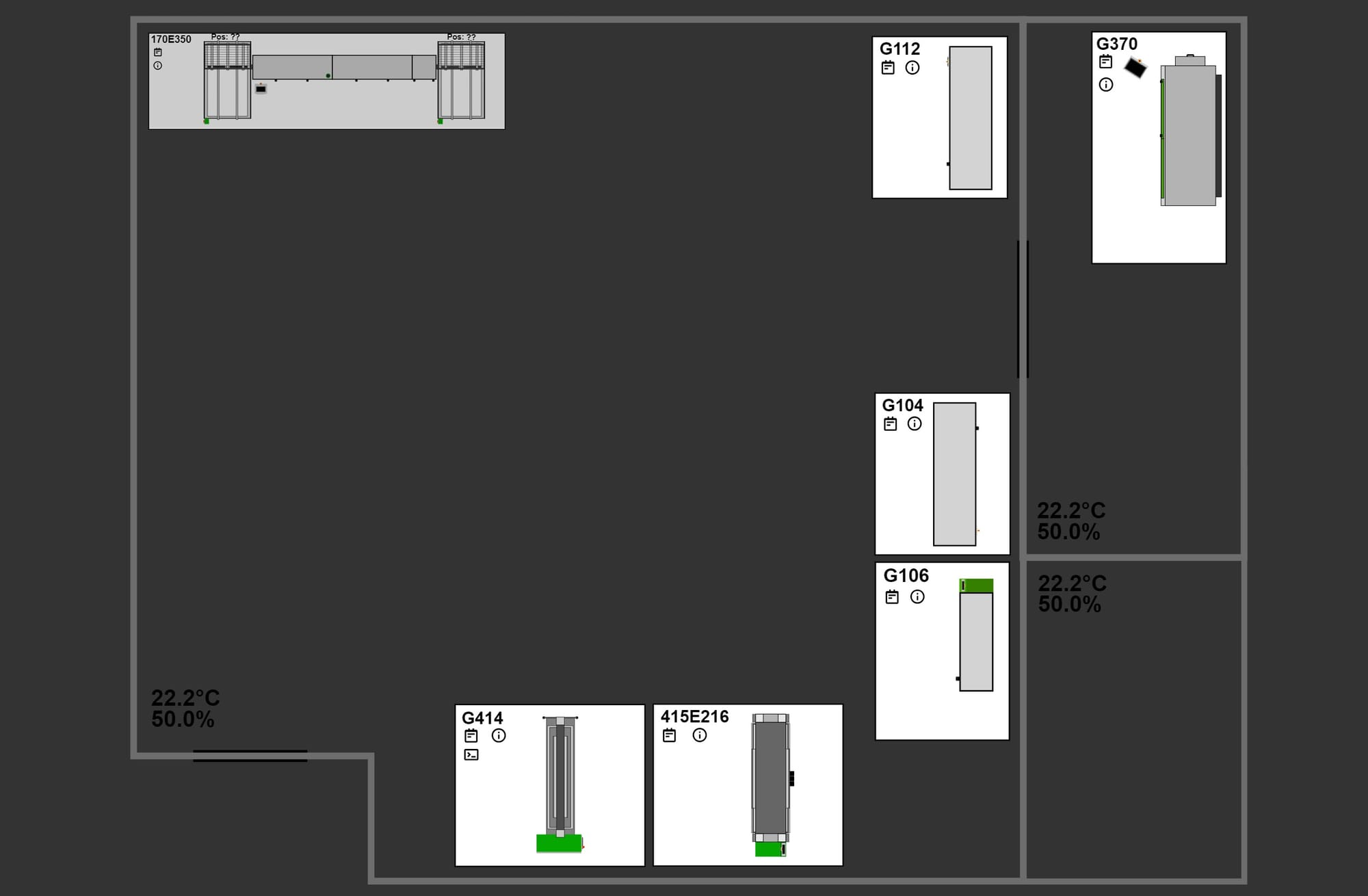
Reset Object
To set a single object to the default size and position, double-click on the selected object.
Machine Edit
To get to the Machine Edit mode you have to click on Edit in the sidebar on the left.
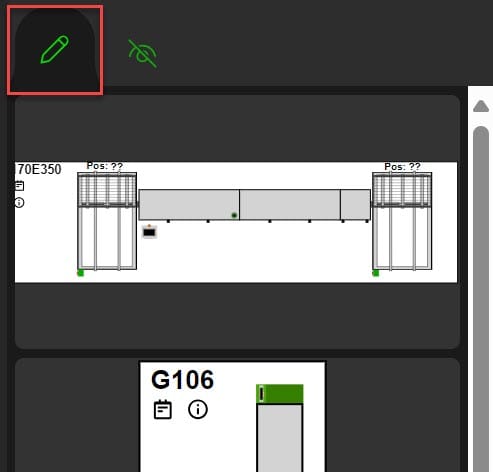
Then you can click on the desired machine and you are in Machine Edit mode.
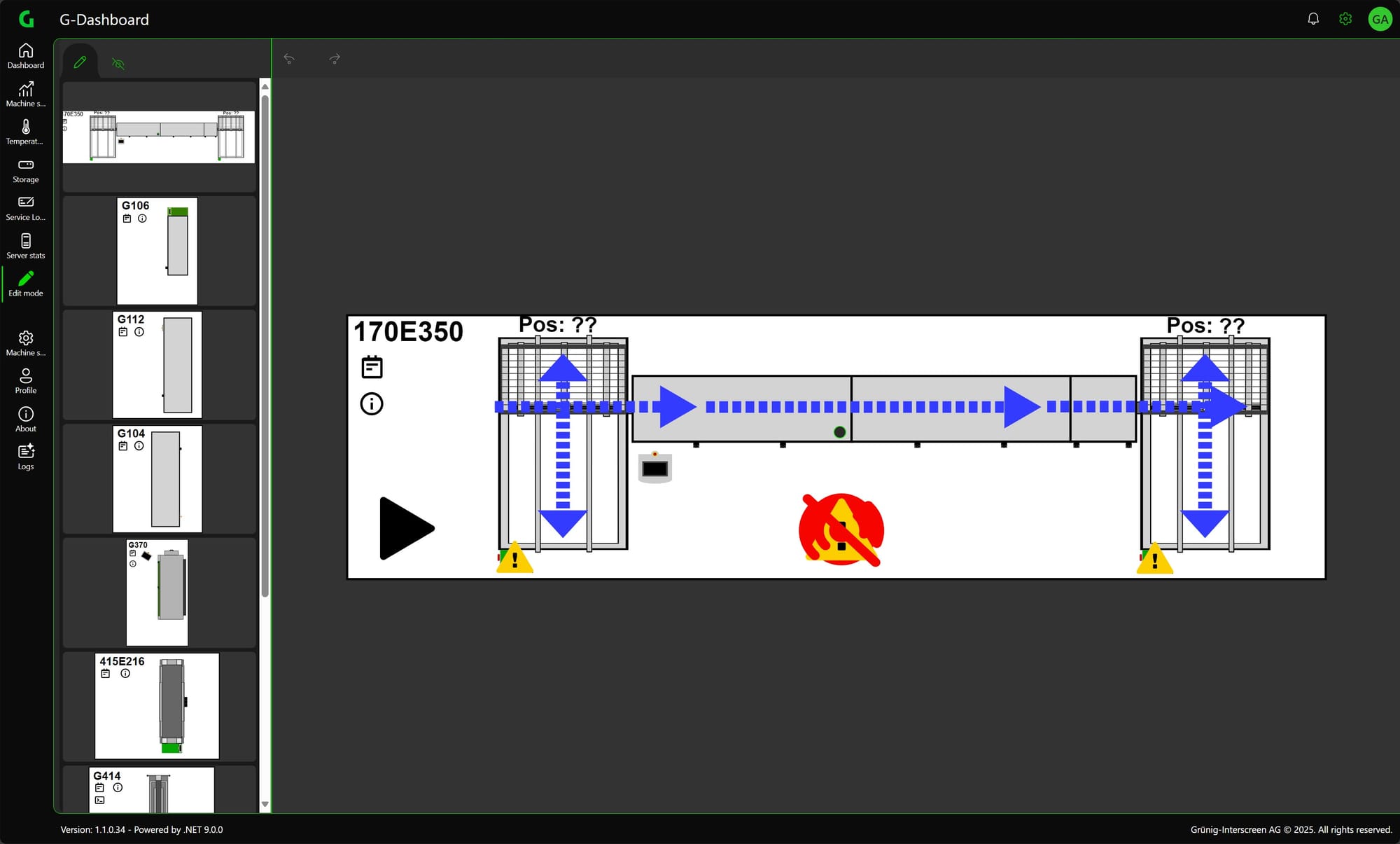
Here you can then edit all elements that are editable. You can also use the normal edit tools here, move and scale. You can also set the element to the default values here by double-clicking.
Multiple Select
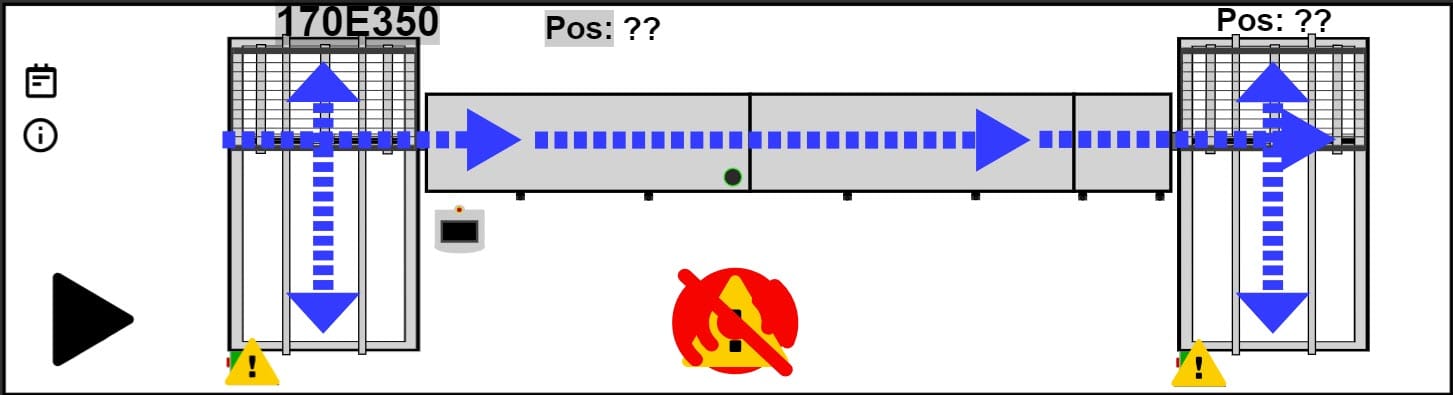
What is now possible in machine edit mode is the selection of several elements at once. To do this, you can click the ctrl button and select the desired elements. It is also possible to select all elements at once with ctrl + a. However, scaling is deactivated in this case.
Room Edit Mode
In Room Edit Mode, the room can be edited more precisely according to your own wishes.
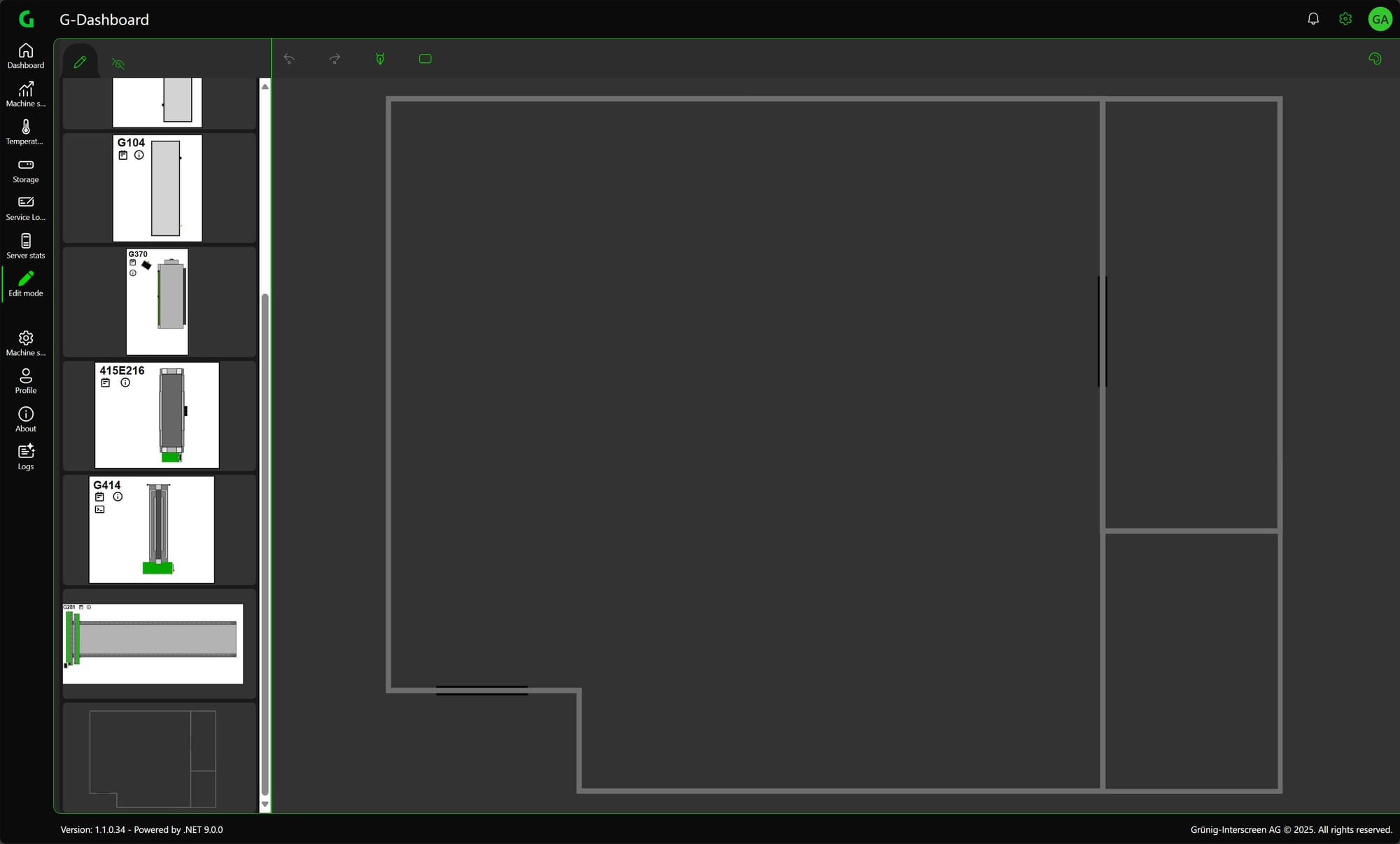
A more detailed description of the functions can be found here.
Visibility and order
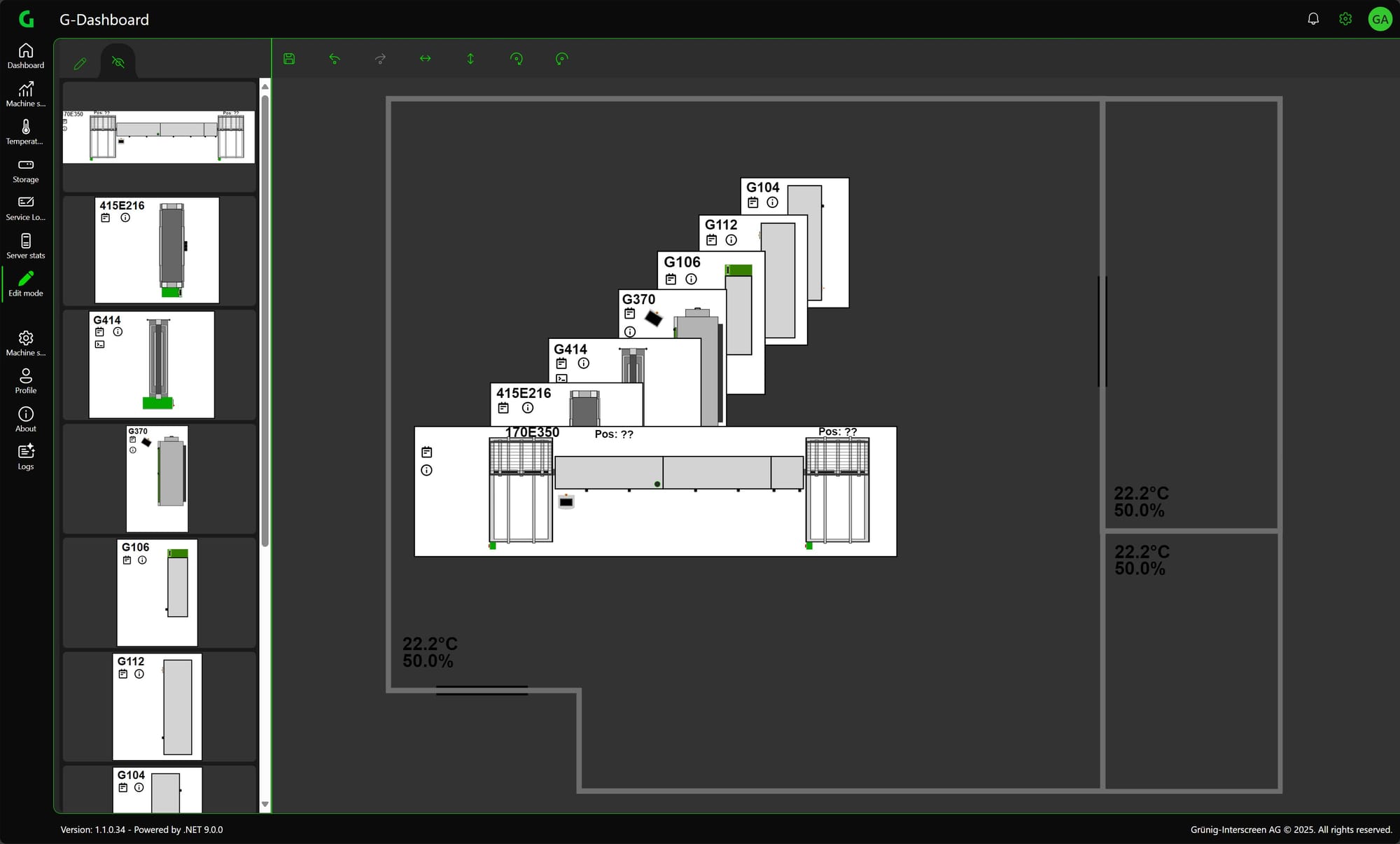
To set the visibility and order of the rows you have to switch to this mode in the sidebar.
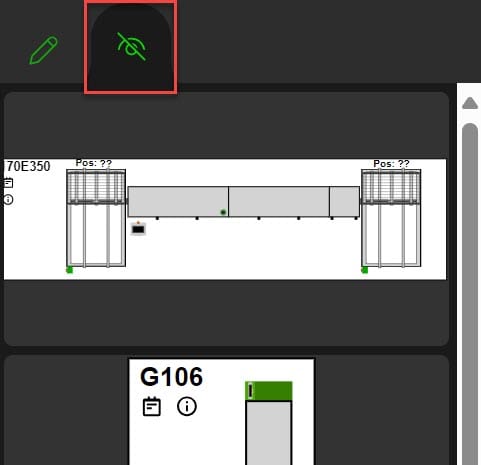
Visibility
The visibility of individual machines, the temperature displays or the room can be switched.
To switch, simply click briefly on the corresponding element in the sidebar.
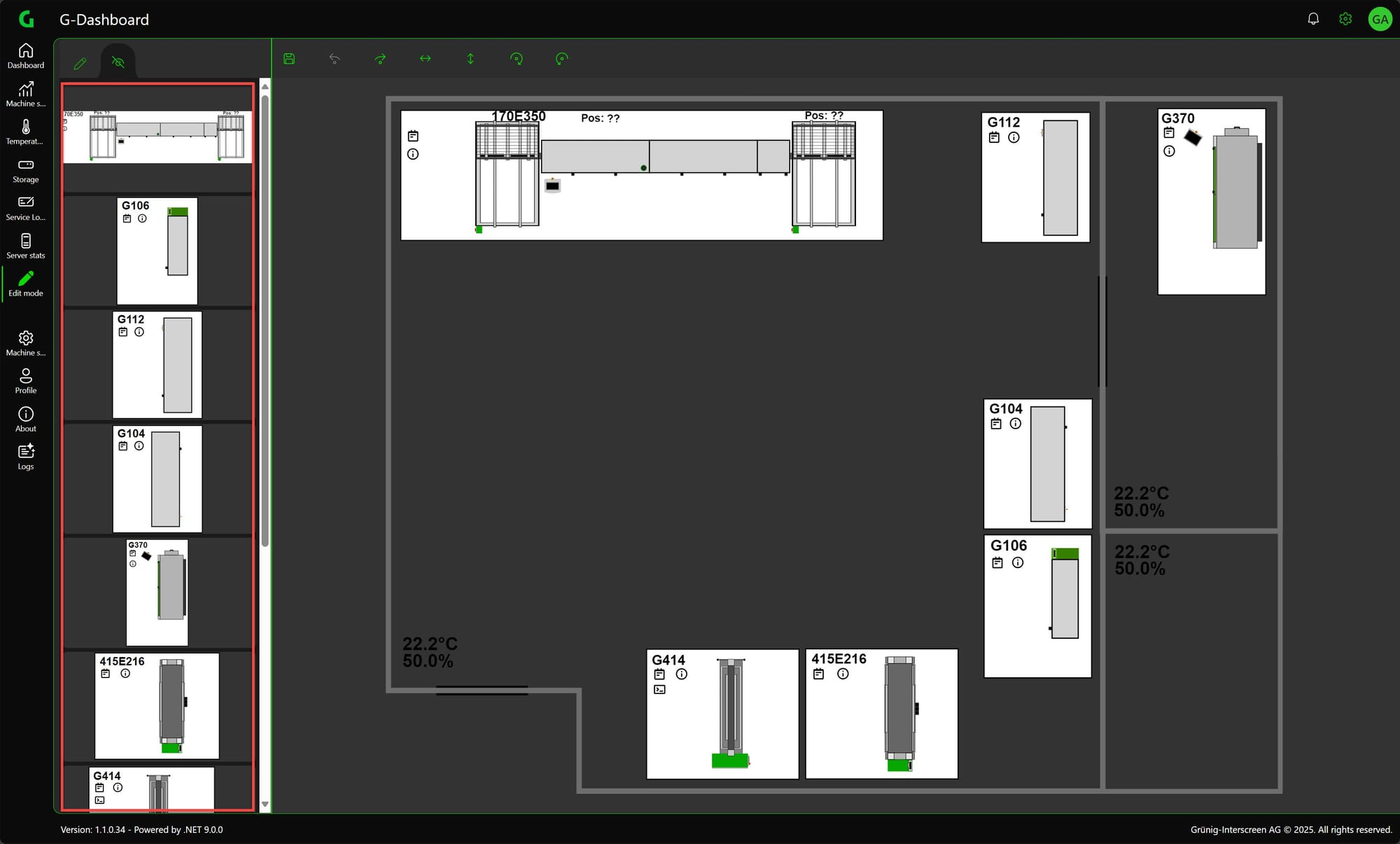
This must also be saved, otherwise the visibility will not be retained.
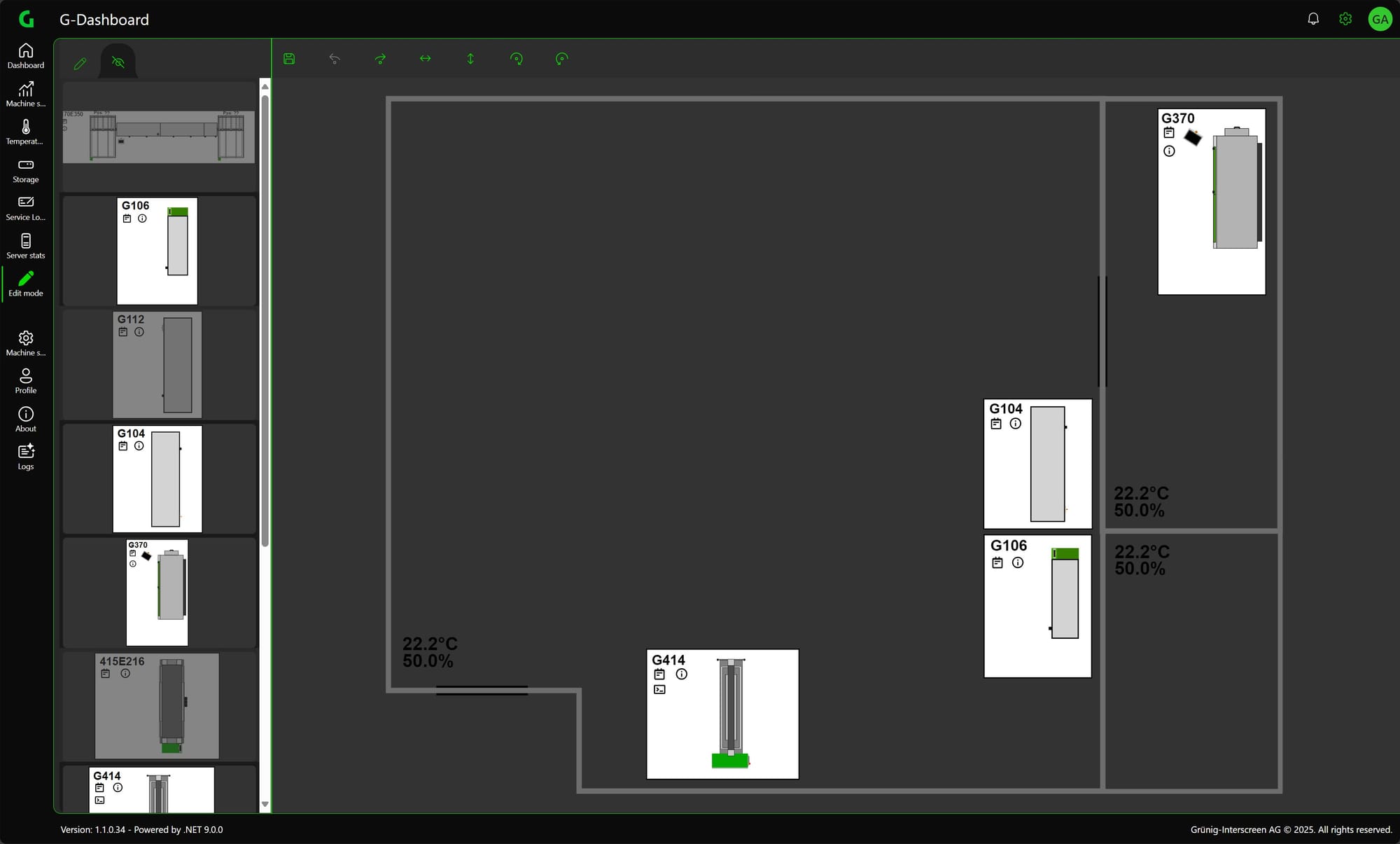
Order
To change the order of the elements, the corresponding element can be clicked and moved up or down. The top element is the highest in the z-index and is therefore above all other elements.
Room Edit Mode
Room Edit Mode is described in more detail here.
Functions
Description of the room edit functions.
Copy
Individual elements can be copied and pasted with ctrl + c and ctrl + v.
Save
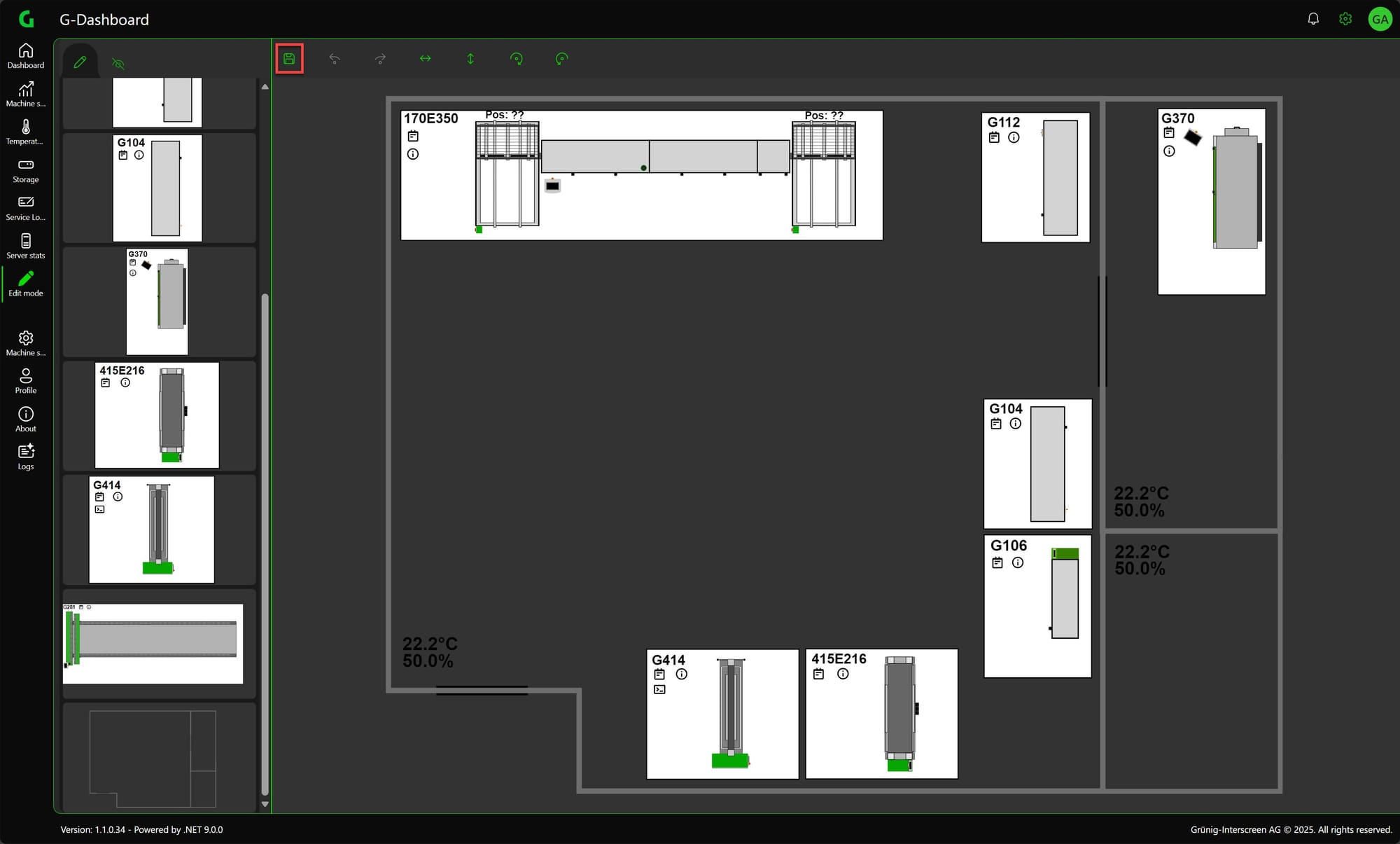
Once the room has been edited, it must be saved. To do this, however, the room must be exited from edit mode and then saved in the Dashboard Edit mode. To do this, simply click on the room again to exit edit mode.
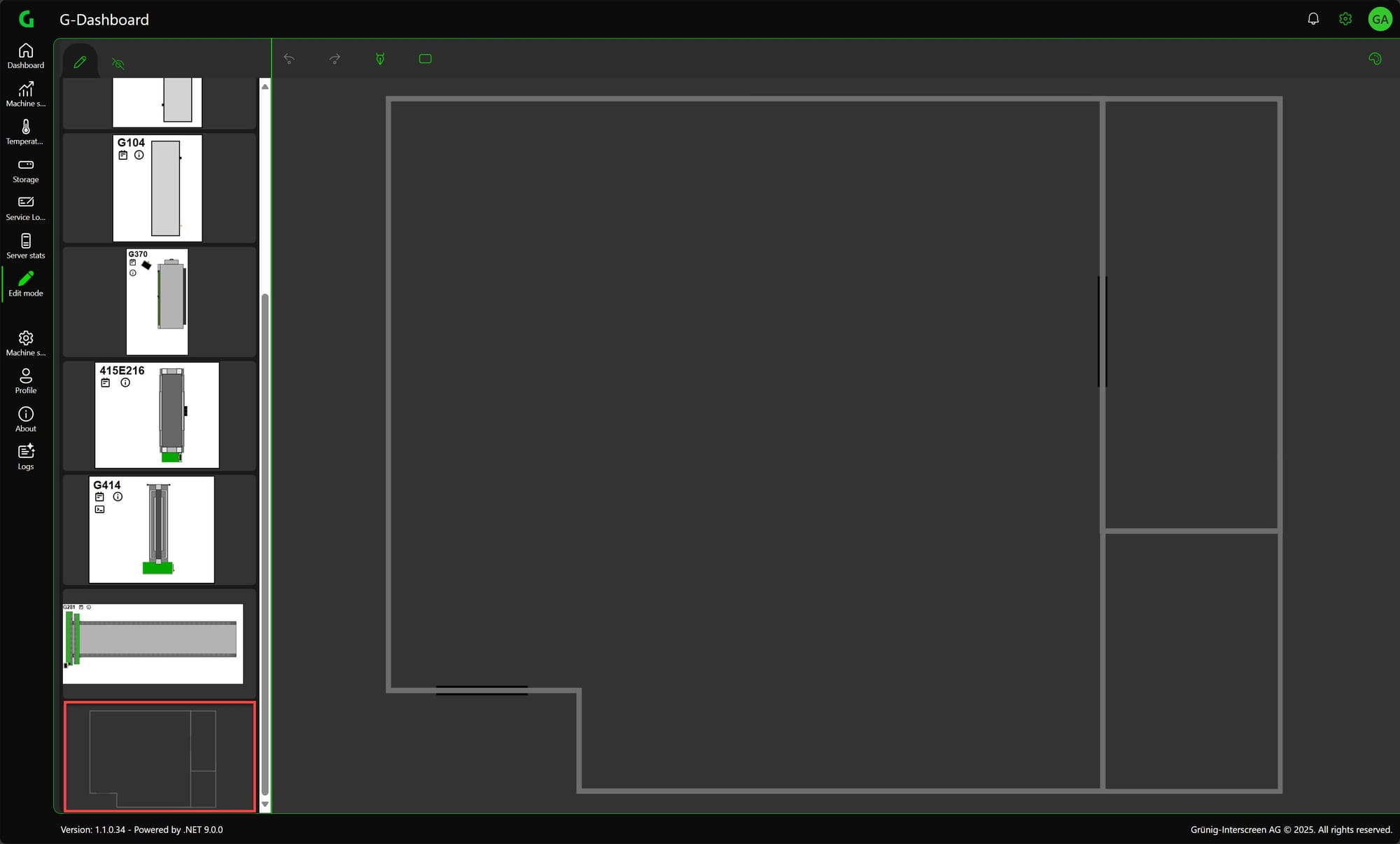
Then you can save normally.
Steps
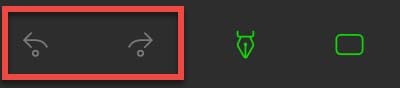
It can be switched back and forth. Can also be executed with the key combination ctrl + z and ctrl + y.
Draw path
This allows you to draw an object from straight lines as desired.
To draw a straight line at a right angle, press the ctrl key while drawing.
To end the drawing, either move the last point to the first point or click the esc key.
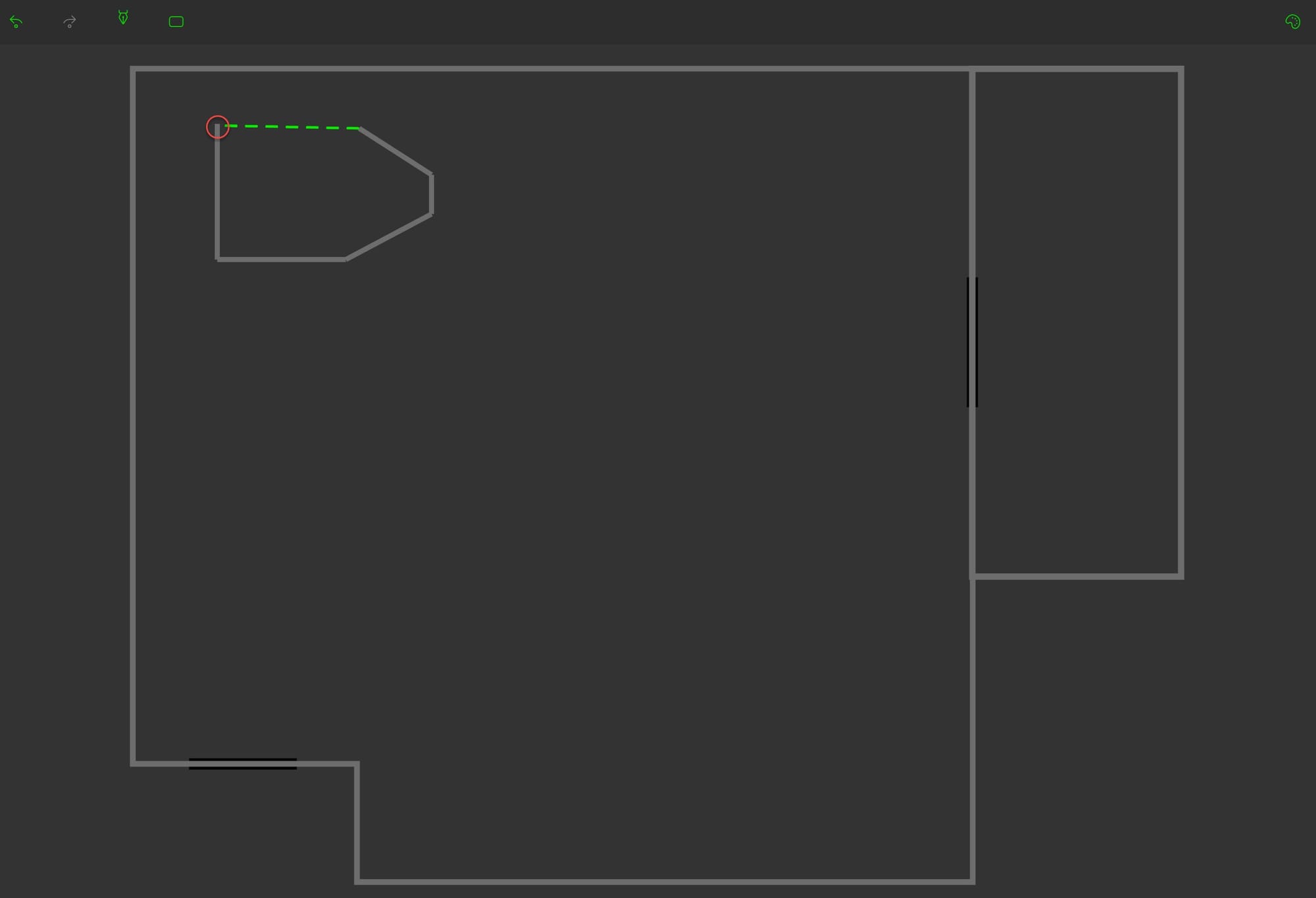
To go back one point while drawing, simply click the right mouse button.
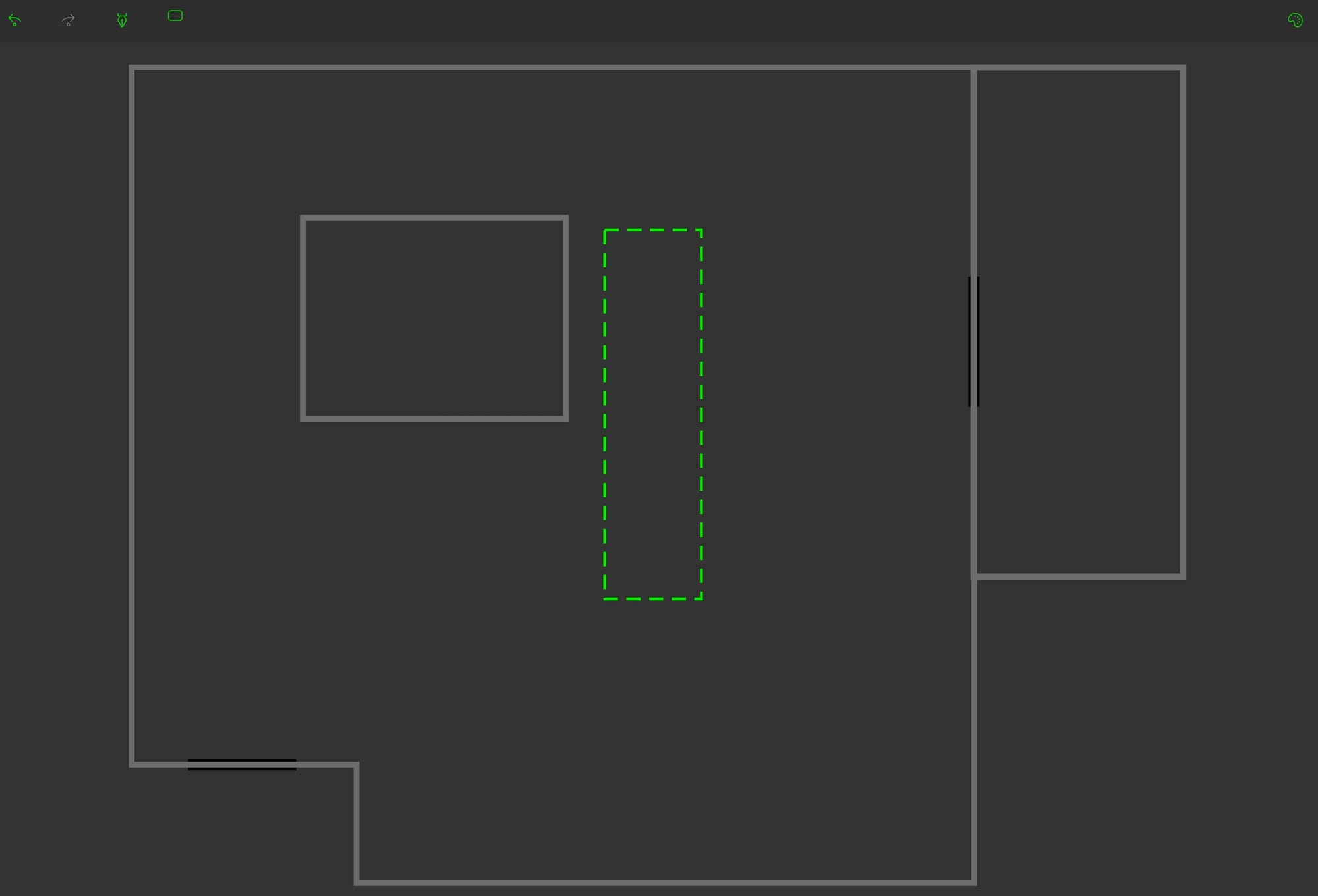
Draw Rectangle
This can be used to draw rectangles.
Style Features
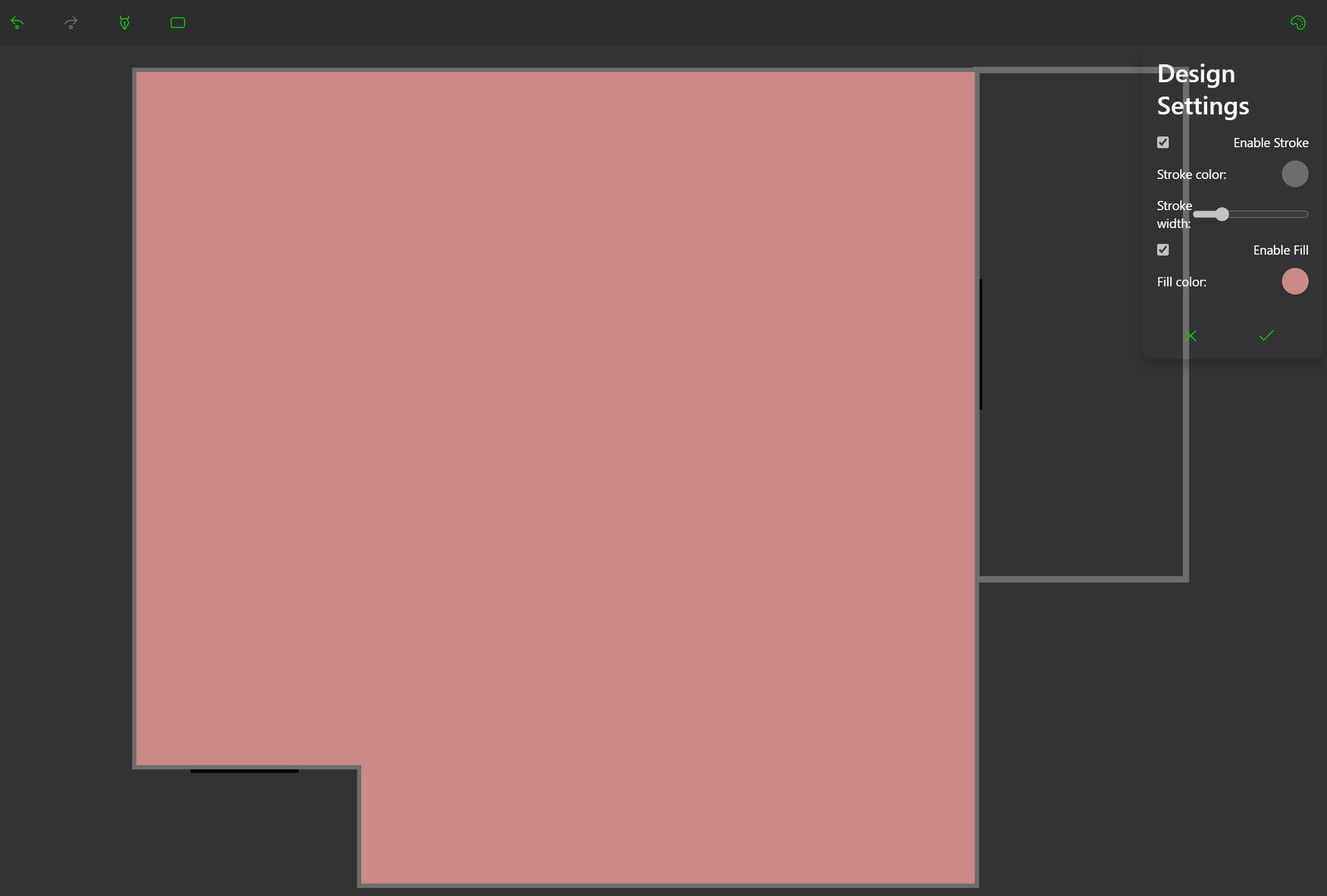
The style properties of the selected objects can be set here.
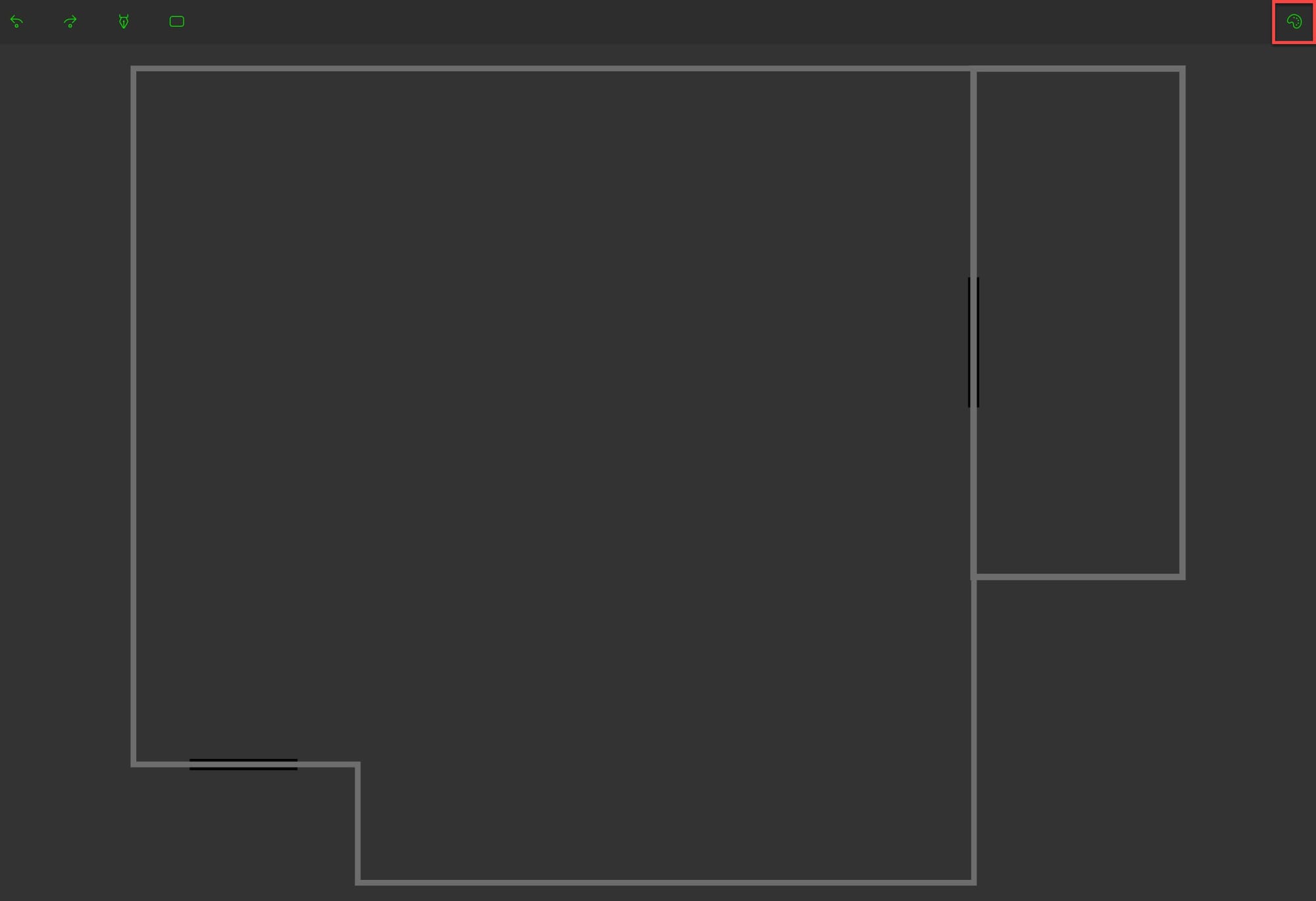
To change the style of an element, the element must be selected and then the style can be adjusted and confirmed.